This guide explains how to use the ContiSure public website and admin portal. Sections are organised by role so you can focus on the tasks relevant to you.
Use the role tabs at the top to filter content for:
Customer — register a warranty, manage your profile, rate your dealer
Dealer — submit claims, manage warranty requests, and administer dealership users
ASM (Area Sales Manager) — oversee dealers and claims in your region
Administrator — manage reference data, reporting, permissions, and system configuration
Video tutorials
Applies to: All
For short video walkthroughs, open Video Tutorials from the portal sidebar after you sign in. The written guide and videos complement each other.
Navigation basics
Applies to: All
Public site — landing.html for information, registration, and sign-in
Admin portal — sign in to access your role-specific menu in the left sidebar
Help icon — click the icon on any page header to open this guide at the relevant section
Getting Started
Sign in
Applies to: All
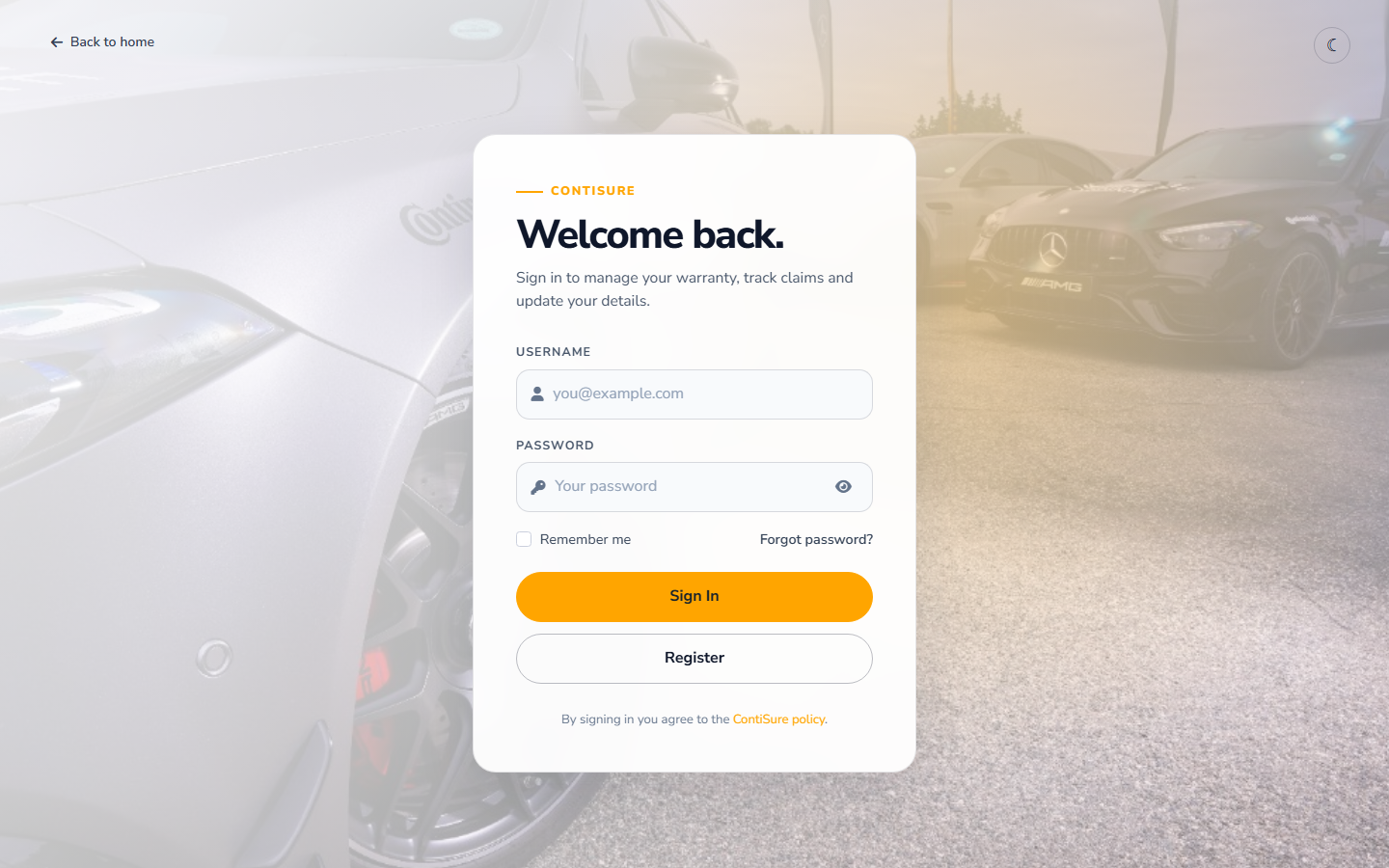
Sign in screen
Open Sign In from the public landing page or go directly to sign-in.html.
Enter your email address and password.
Click Sign In to access the portal.
Use the show password toggle if you need to verify what you typed.
If you have forgotten your password, use the Forgot password link on the sign-in page.
First login
Applies to: All
After your first successful sign-in:
You are taken to My Profile by default.
Review your personal details and update any incorrect information.
Explore the sidebar — only menu items permitted for your role are shown.
Sign out
Applies to: All
Click your profile menu in the top-right corner of the portal.
Select Sign out to end your session securely.
Public Site
Landing page
Applies to: All
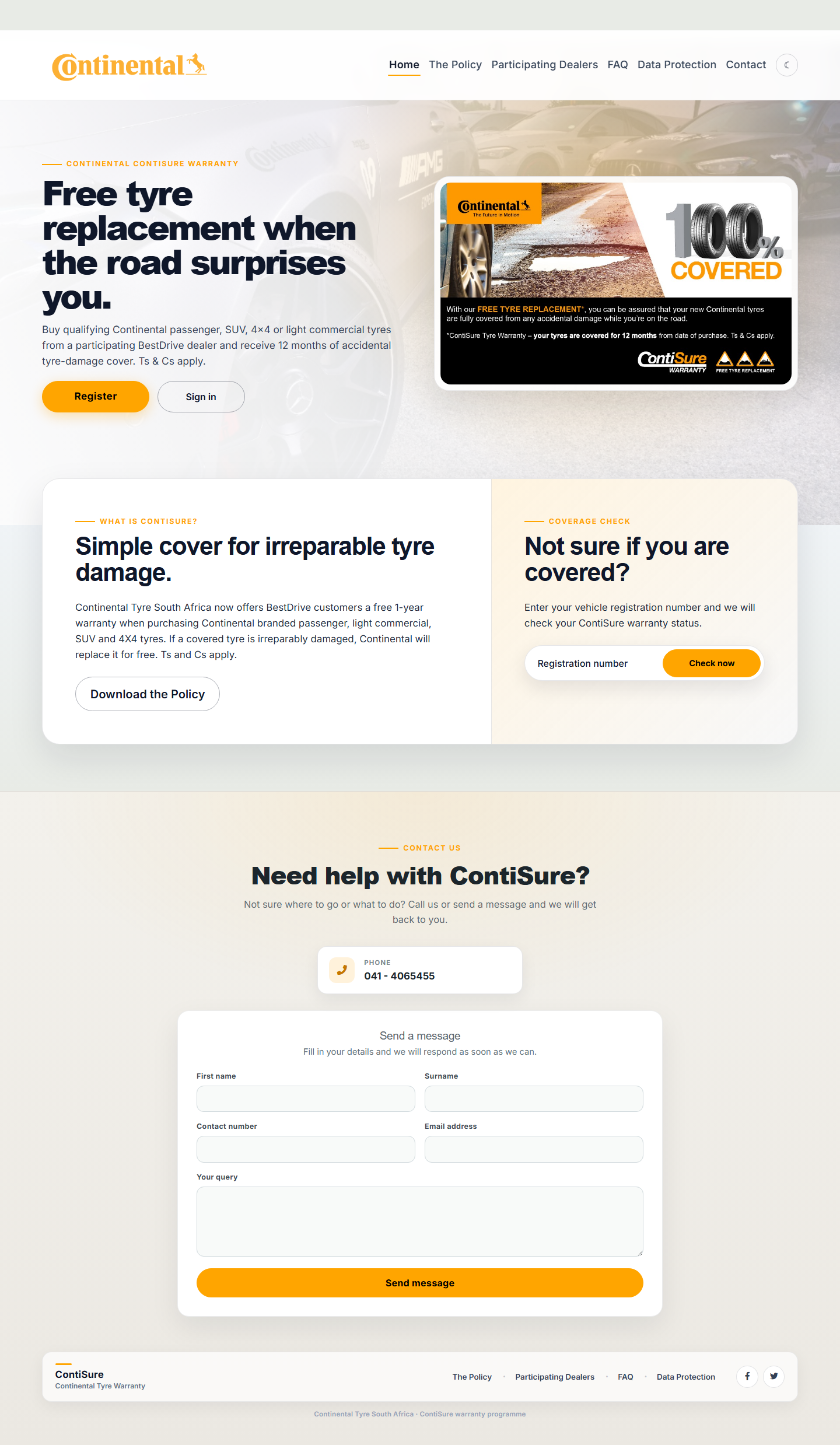
ContiSure landing page
The landing page introduces the ContiSure warranty programme and provides quick access to registration, sign-in, policy information, FAQ, and contact details.
Browse Home, Policy, FAQ, Data Protection, and Contact from the top navigation.
Click Register to create a new warranty registration.
Click Sign In if you already have an account.
Warranty check
Applies to: All
On the landing page, enter your vehicle registration number in the coverage check field.
Click Check to see whether ContiSure is active on your vehicle.
Review the status message and vehicle details in the popup.
Customer registration
Applies to: All
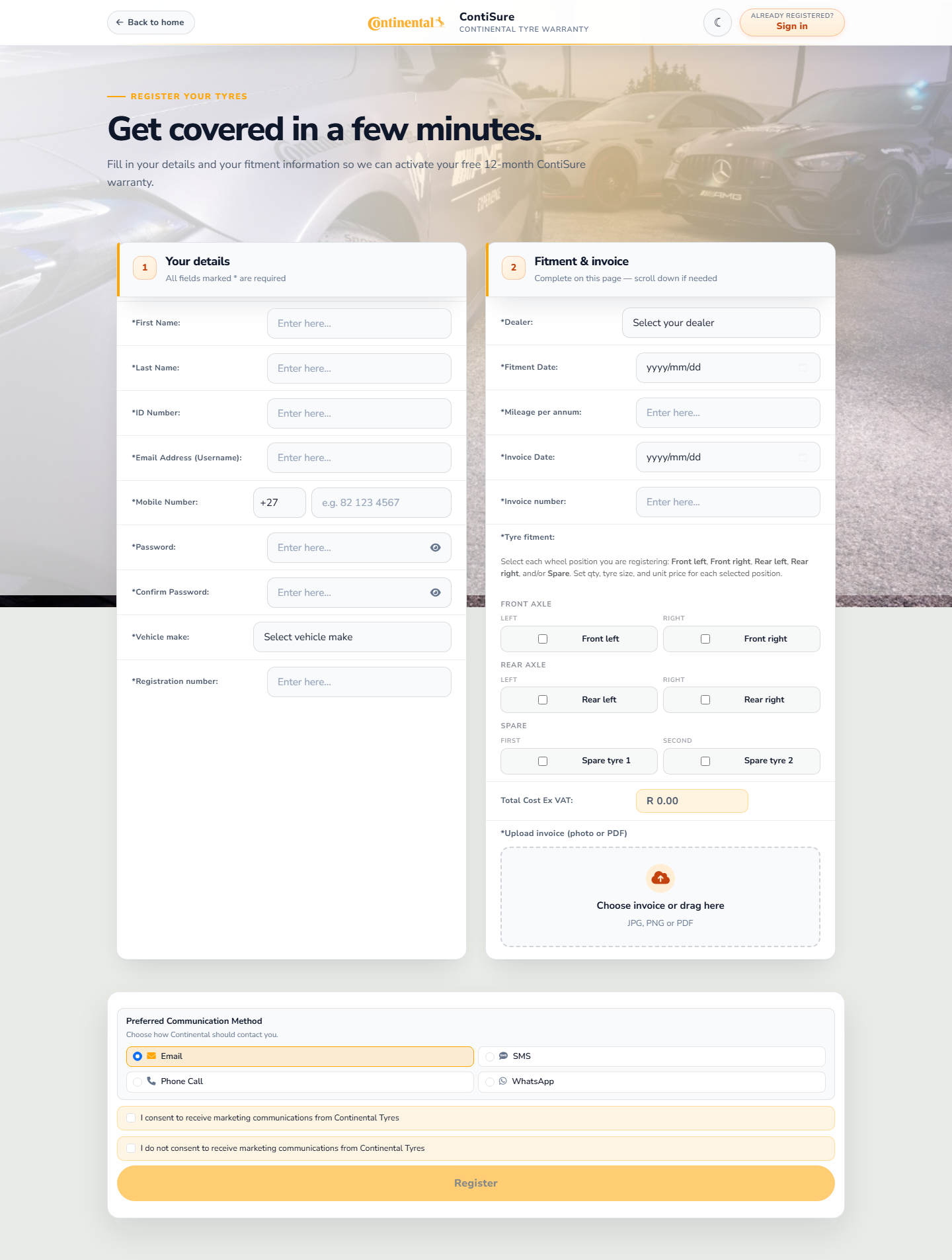
Registration form
Open Register from the landing page or go to registration.html.
Complete all required fields on the single-page form:
Personal details (name, ID number, contact details)
Vehicle details (make, model, registration, VIN)
Tyre fitment (front, rear, and spare positions with size and quantity)
Invoice details and mandatory invoice attachment
Validate your ID number, email, and mobile number as prompted.
Click Submit when all required fields are complete.
Registration cannot be submitted without an invoice attachment.
FAQ and policy
Applies to: All
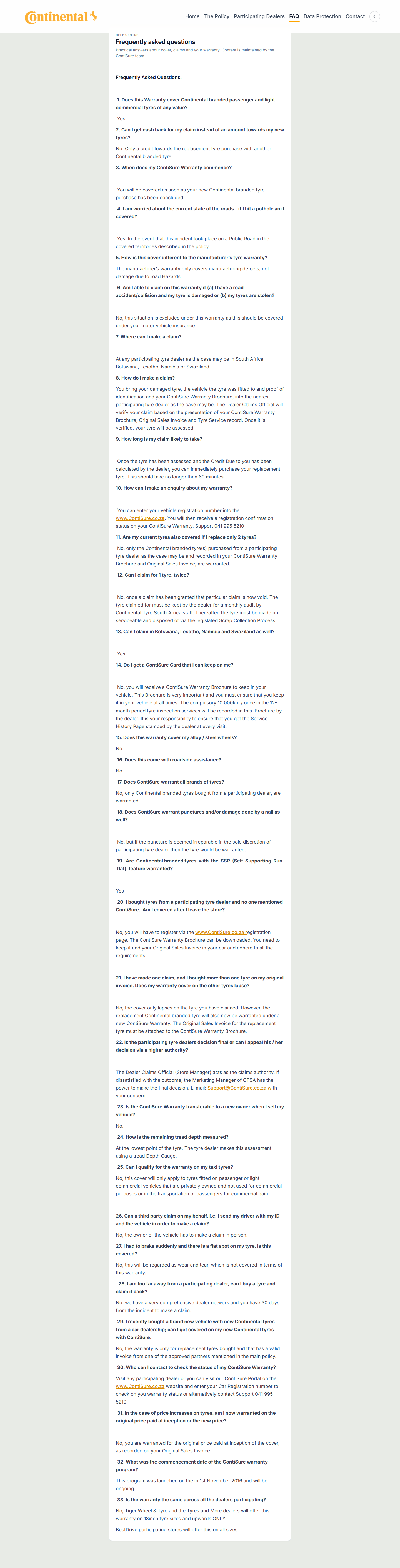
FAQ section
Policy — summary of warranty terms; use Download at the bottom of the policy panel for the full document.
FAQ — answers to common questions about ContiSure.
Data Protection — how your personal information is handled under POPIA.
Administrators with an active portal session can edit FAQ, policy, and data protection content directly from the landing page.
Customer
My Profile
Applies to: Customer, Dealer, Asm, Administrator
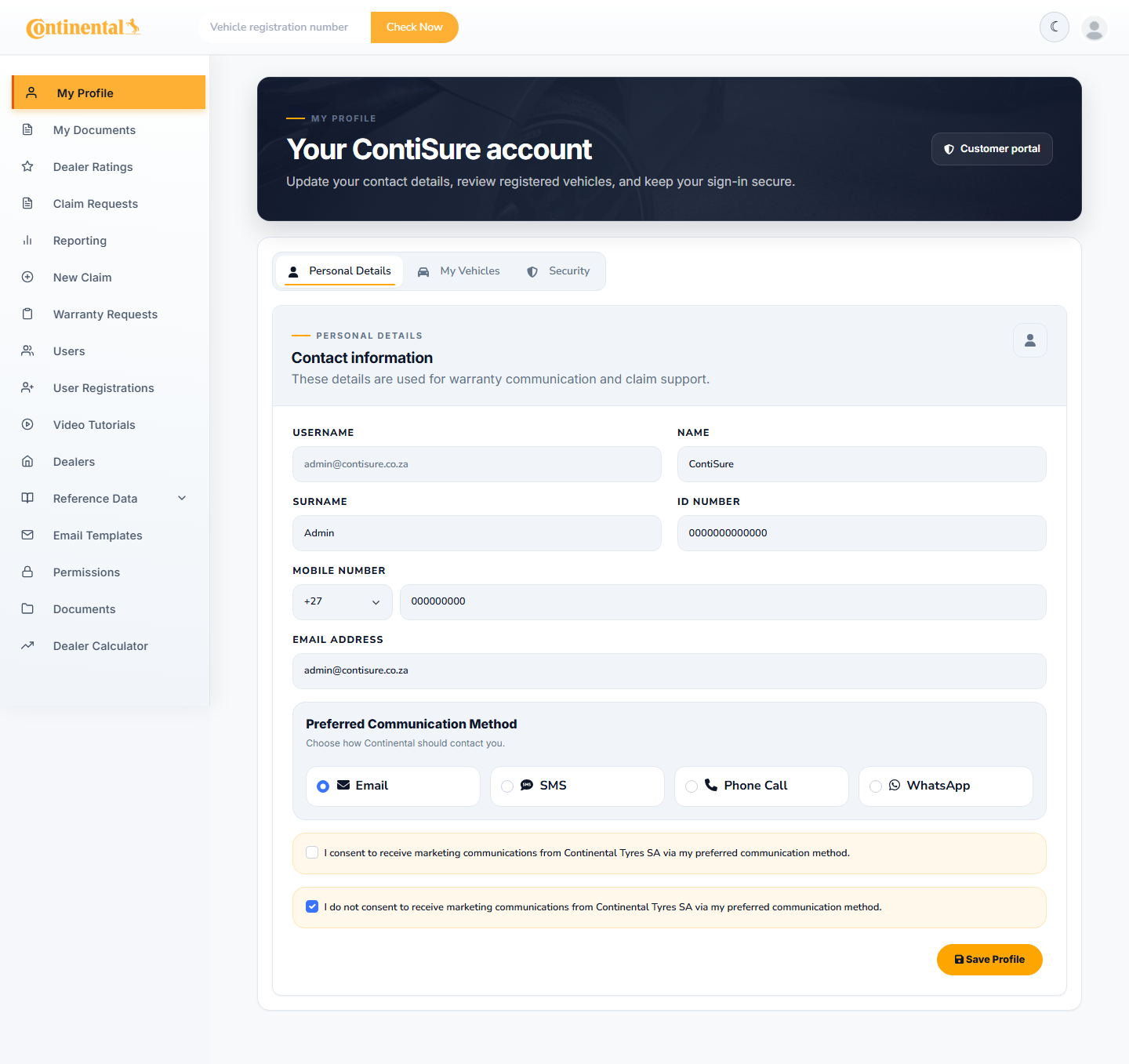
My Profile
Open My Profile from the sidebar.
Review and update your personal details, contact information, and communication preferences.
Manage linked vehicles and tyre fitment records from the profile sections.
Click Save after making changes.
Customers should verify that mobile number and marketing opt-in/opt-out preferences are correct, especially after data migration from the legacy system.
Dealer ratings
Applies to: Customer, Dealer, Asm, Administrator
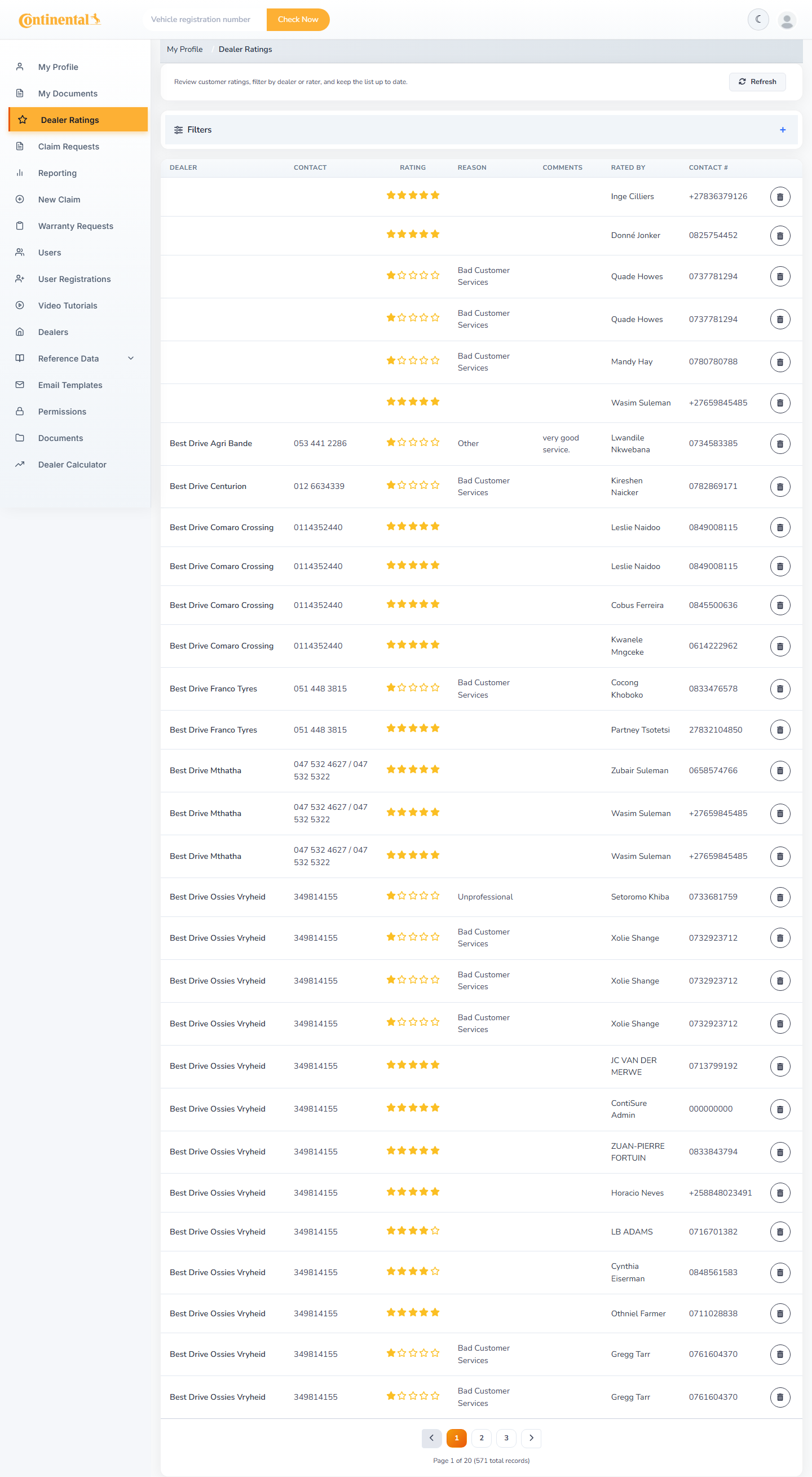
Dealer Ratings
Open Dealer Ratings from the sidebar.
After registration, you may be prompted to rate your dealership experience.
Answer each criterion (for example, whether the dealership looked clean and presentable).
Submit your rating to help improve dealer service quality.
Dealer
New claim
Applies to: Dealer, Administrator
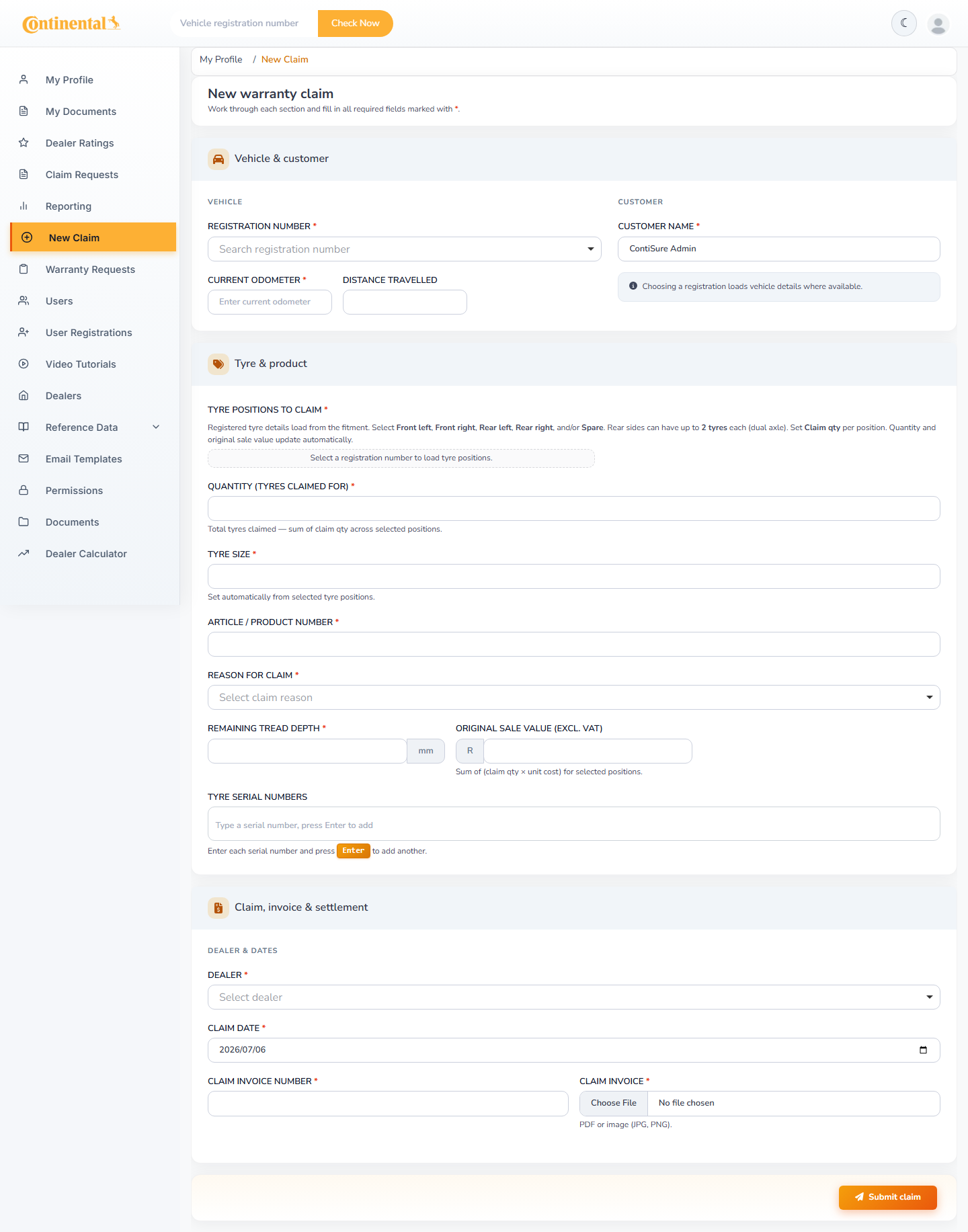
New Claim
Open New Claim from the sidebar.
Complete all required claim fields (customer, vehicle, tyre, and claim reason details).
Attach supporting documentation where required.
Click Save to submit the claim at New status.
Claim requests
Applies to: Dealer, Asm, Administrator
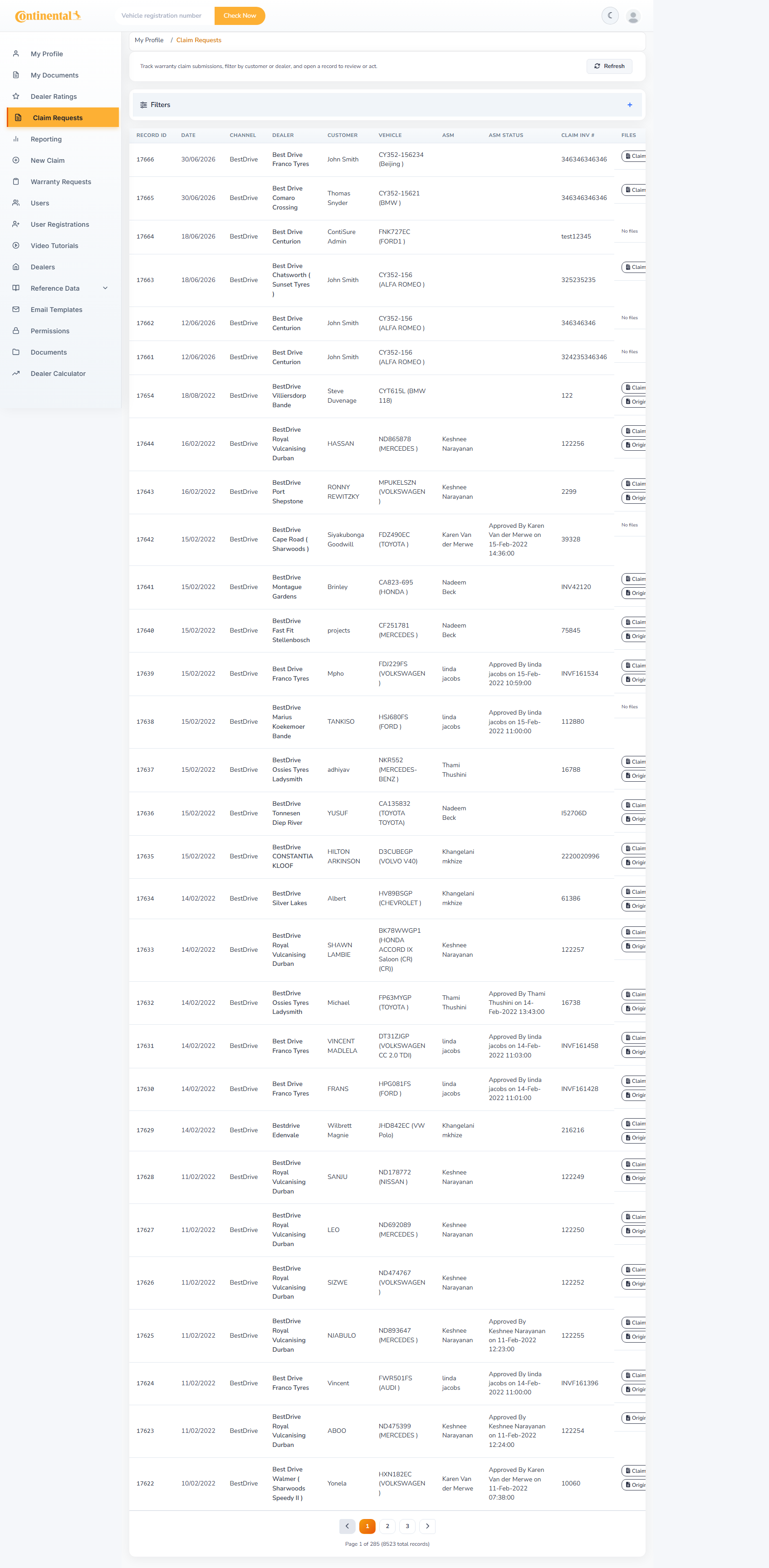
Claim Requests
Open Claim Requests to view all claims in your scope.
Use Filters to search by customer, dealer, status, or date range.
Click a claim row to open the detail view and review or update the record.
Click Refresh to reload the latest data.
Warranty
Applies to: Dealer, Asm, Administrator
Warranty list
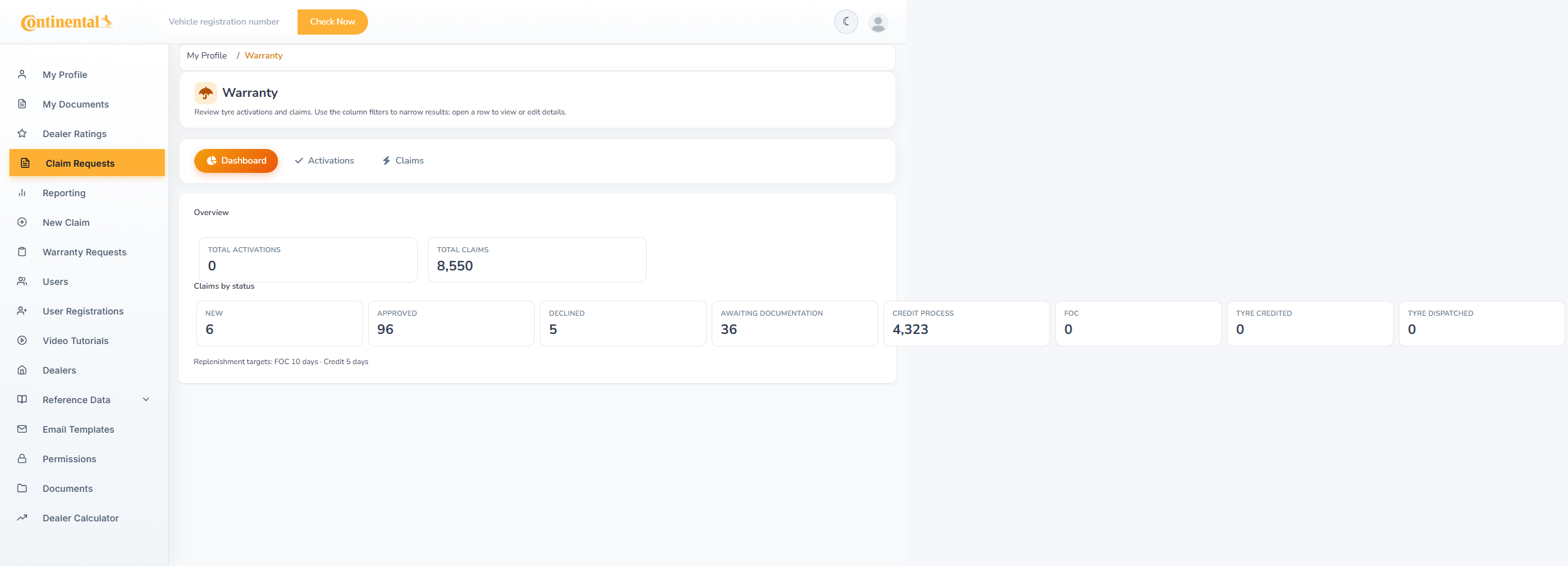
Open Warranty to view warranty activations and related claims.
Search and filter the grid as needed.
Click a record to open activation or claim detail.
Warranty requests
Applies to: Dealer, Asm, Administrator
Warranty Requests
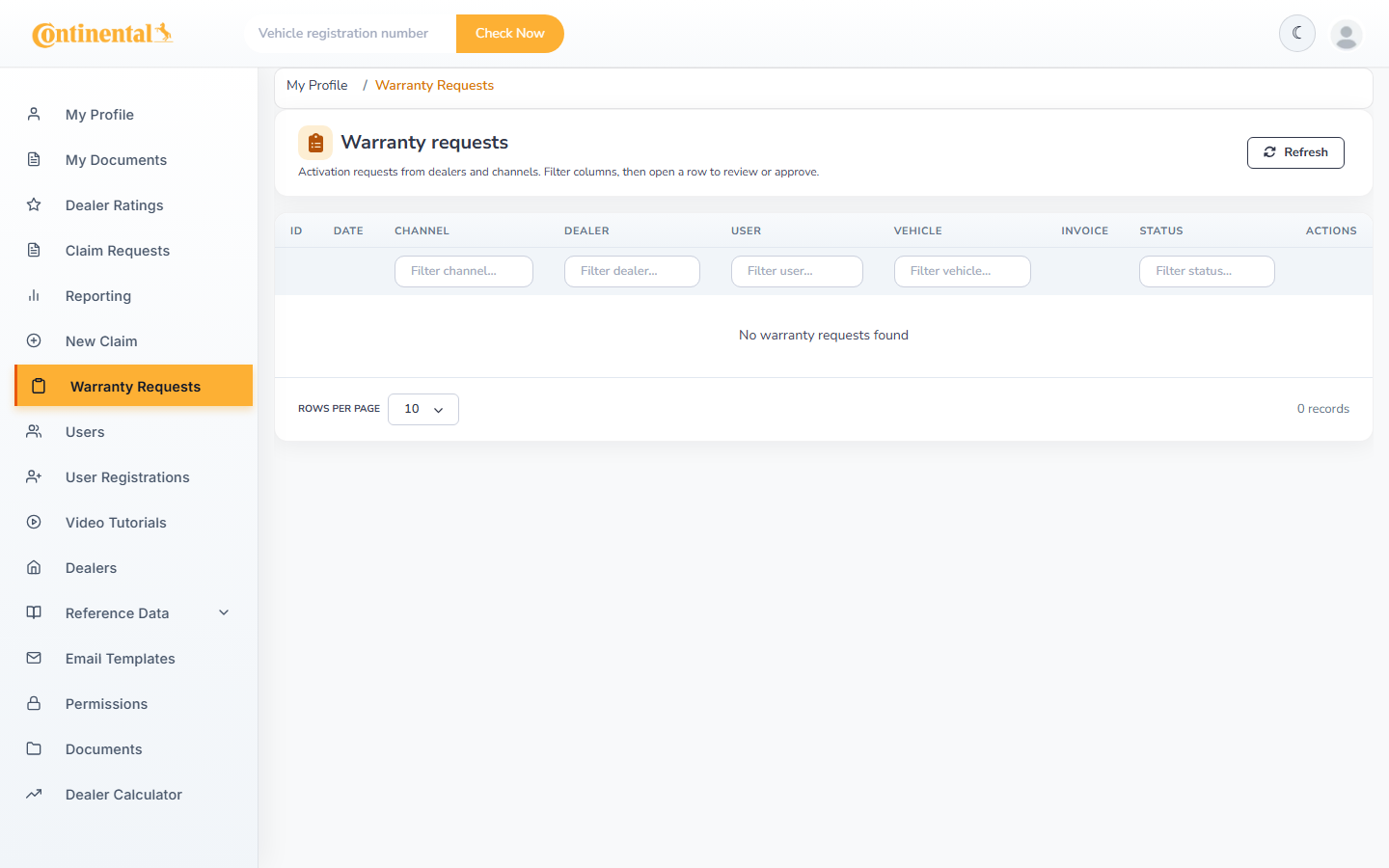
Open Warranty Requests from the sidebar.
Review pending warranty registration requests assigned to your dealership.
Open a request to approve, decline, or request further information.
Dealers
Applies to: Dealer, Asm, Administrator
Dealers grid
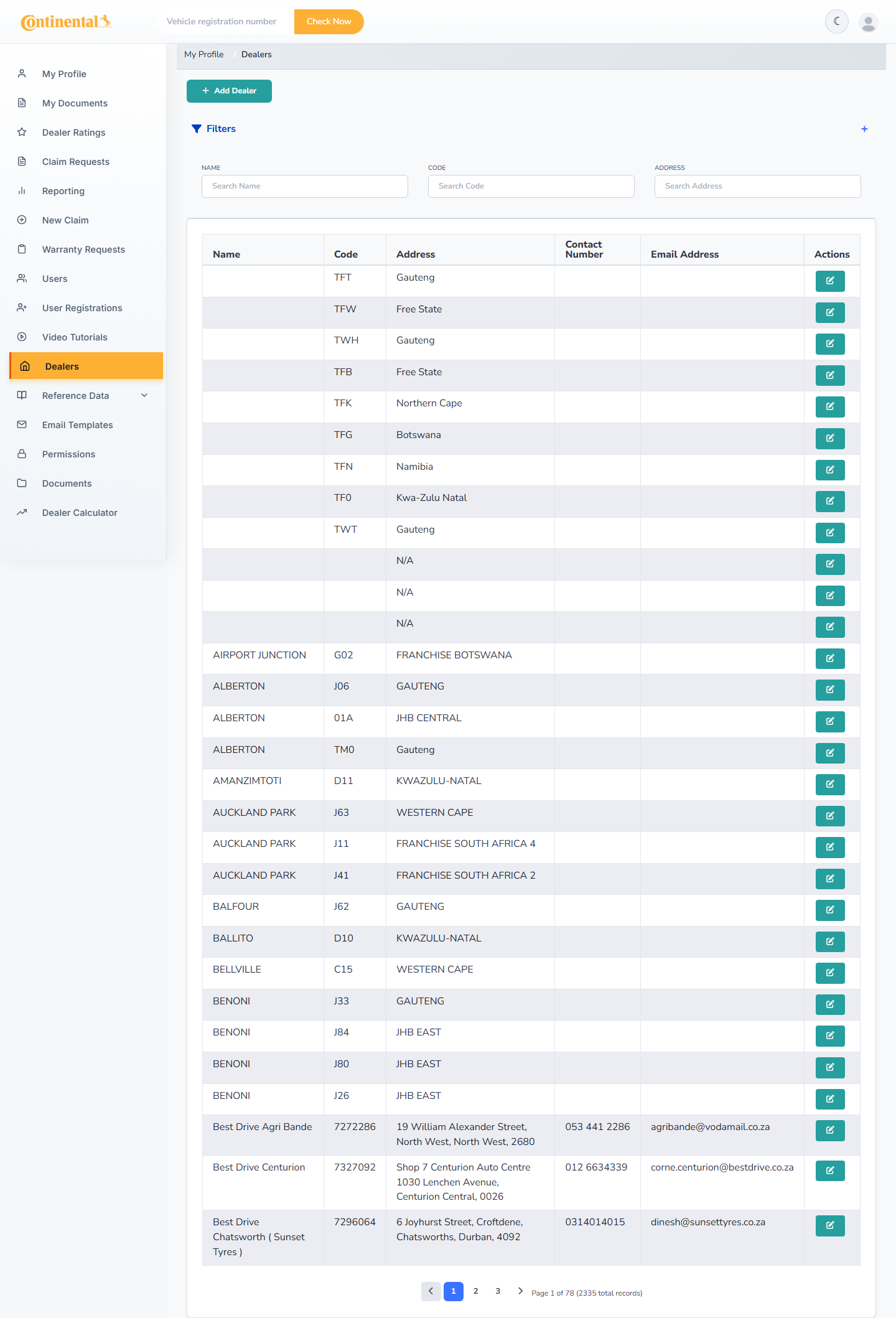
Open Dealers to view dealership records in your scope.
Click a dealer name to open the detail form.
Update contact details and operational information as permitted.
Click Save to apply changes.
Users
Applies to: Dealer, Administrator
Users grid
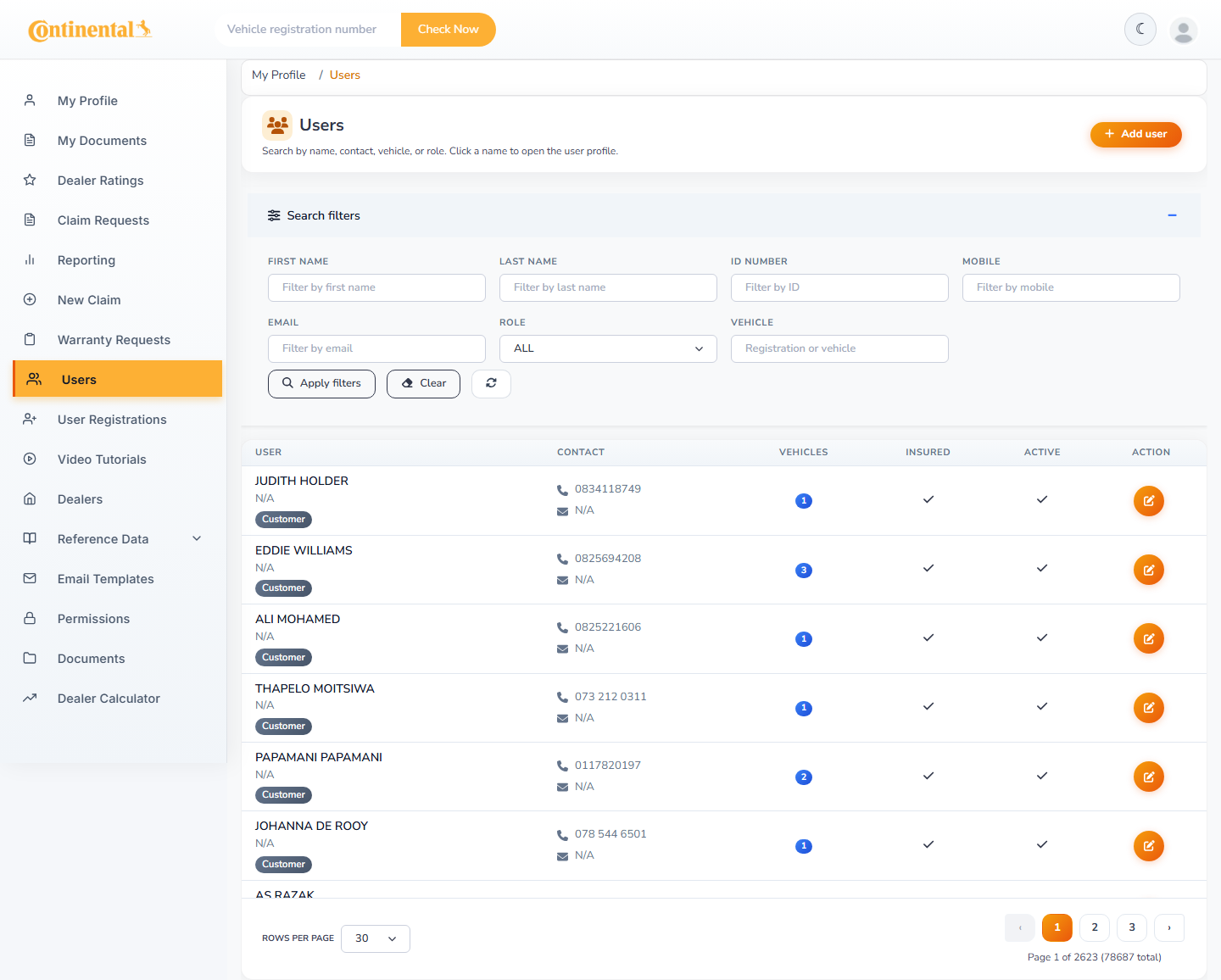
Open Users to manage portal accounts for your dealership.
Click Add User to create a new account.
Click a user name to edit details, role assignment, and status.
Use Delete with confirmation to remove accounts no longer required.
Video tutorials
Applies to: Dealer, Asm, Administrator
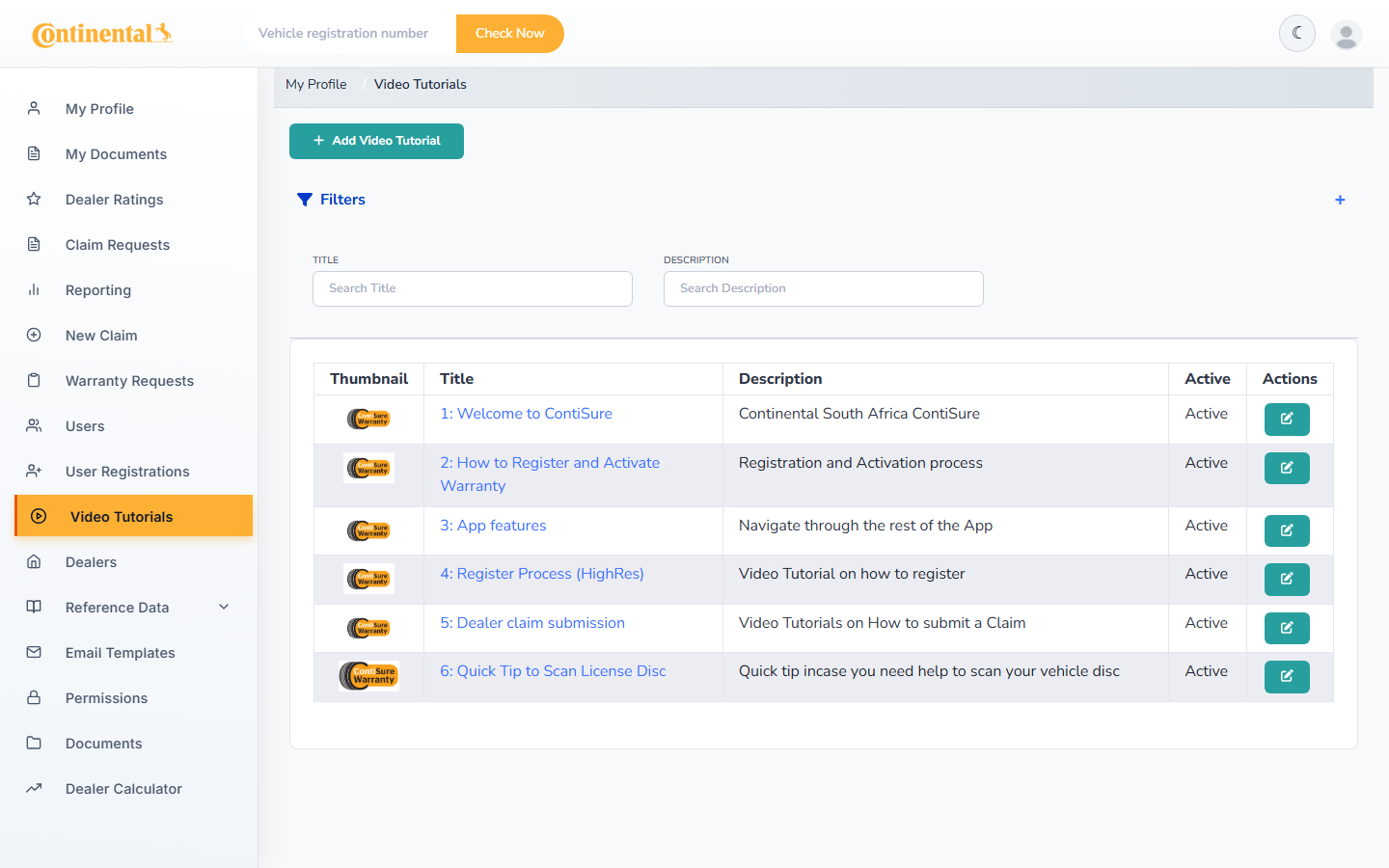
Video Tutorials
Open Video Tutorials from the sidebar.
Browse available training videos for your role.
Click a thumbnail or title to watch the tutorial.
Administrators can add and manage tutorials from the same screen using Add Video Tutorial.
Area Sales Manager
Regional scope
Applies to: Asm, Administrator
Your user account is linked to a region and dealership in Users administration.
Dealer and claim data shown in the portal is filtered to your allocation.
Contact an Administrator if your region or dealer assignment is incorrect.
Dealers in your region
Applies to: Asm, Administrator
Dealers grid
Open Dealers to review dealerships in your region.
Monitor dealer contact details and operational status.
Open a dealer record to view or update permitted fields.
Claim oversight
Applies to: Asm, Administrator
Claim Requests
Open Claim Requests to monitor claims for dealers in your region.
Use filters to identify claims requiring attention.
Open claim detail to review status progression and documentation.
Warranty requests
Applies to: Asm, Administrator
Warranty Requests
Open Warranty Requests to track registration requests in your region.
Follow up with dealers on pending or incomplete requests.
Reporting visibility
Applies to: Asm
ASM users do not have access to full Reporting exports. Use Claim Requests and Warranty screens for operational oversight. Contact an Administrator for formal reports.
Administrator
Reference data
Applies to: Administrator
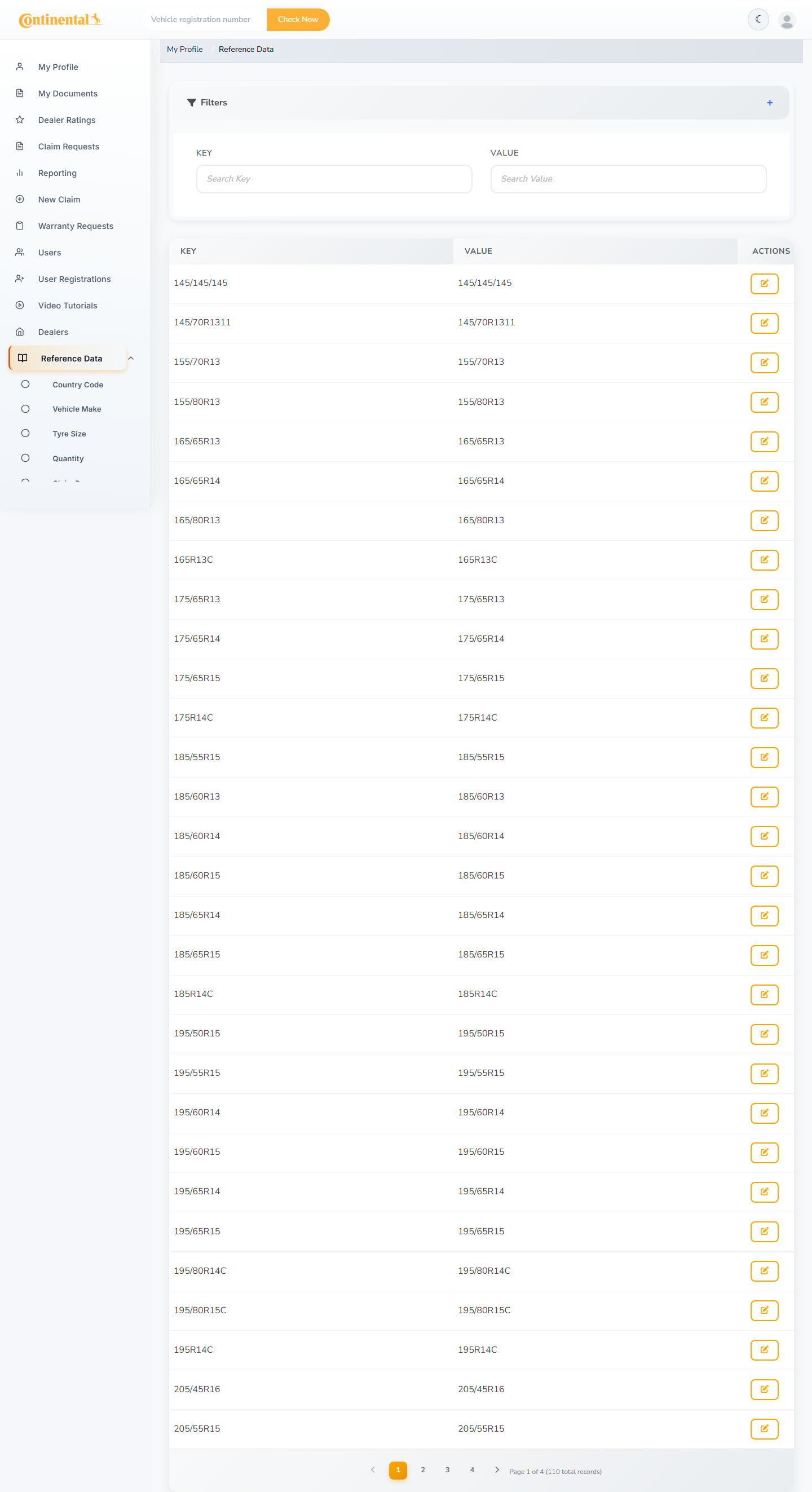
Reference Data hub
Open Reference Data from the sidebar.
Select a supporting table (Country Code, Vehicle Make, Tyre Size, Claim Reason, and others).
Add, edit, or deactivate records as business rules require.
Changes apply immediately to registration forms, claims, and dropdowns across the portal.
Reporting
Applies to: Administrator
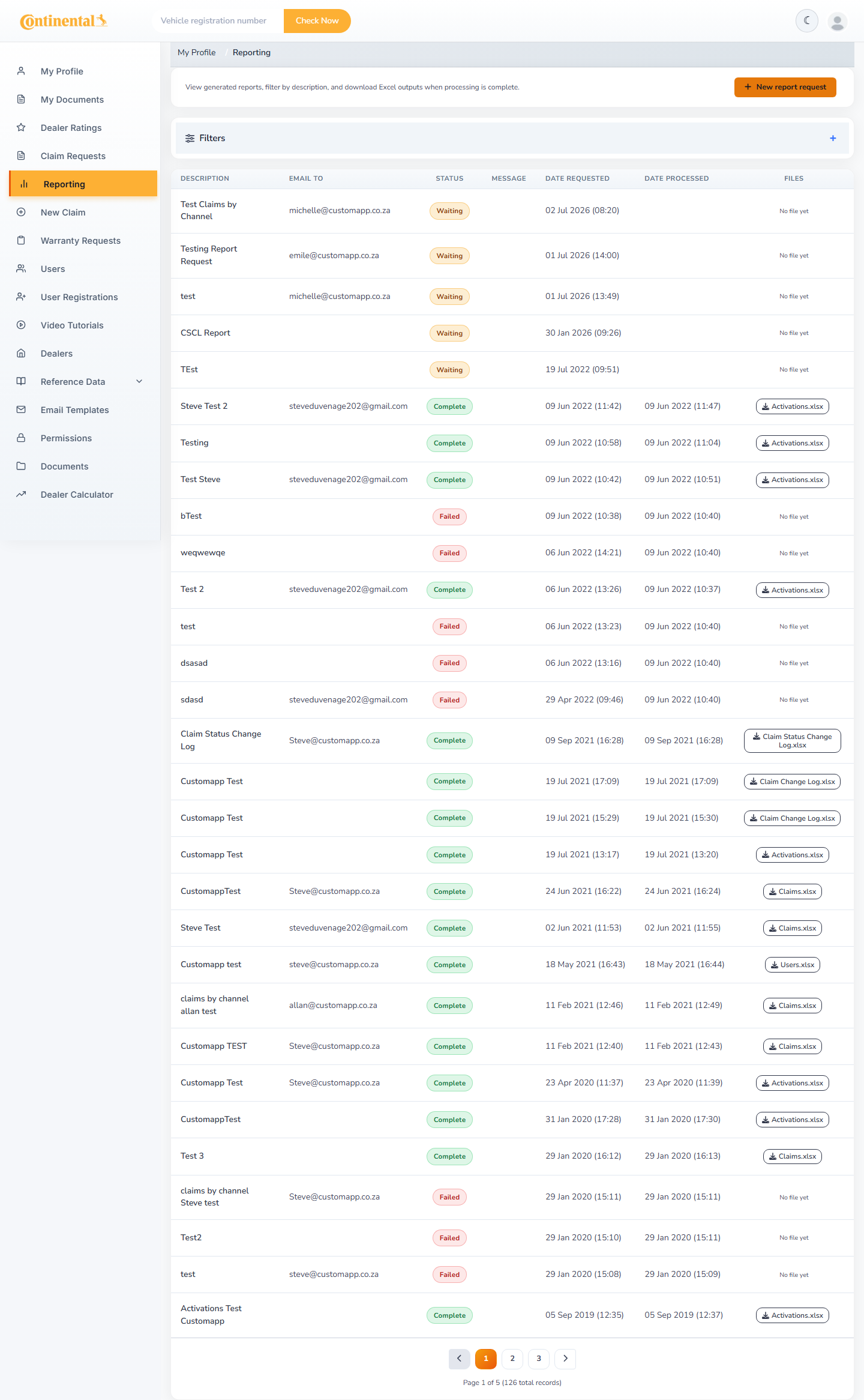
Reporting
Open Reporting from the sidebar.
Click New Report to request a report type (lifecycle export, status summary, and others).
Configure date range and filters.
Submit the request and download results when processing completes.
User registrations
Applies to: Administrator
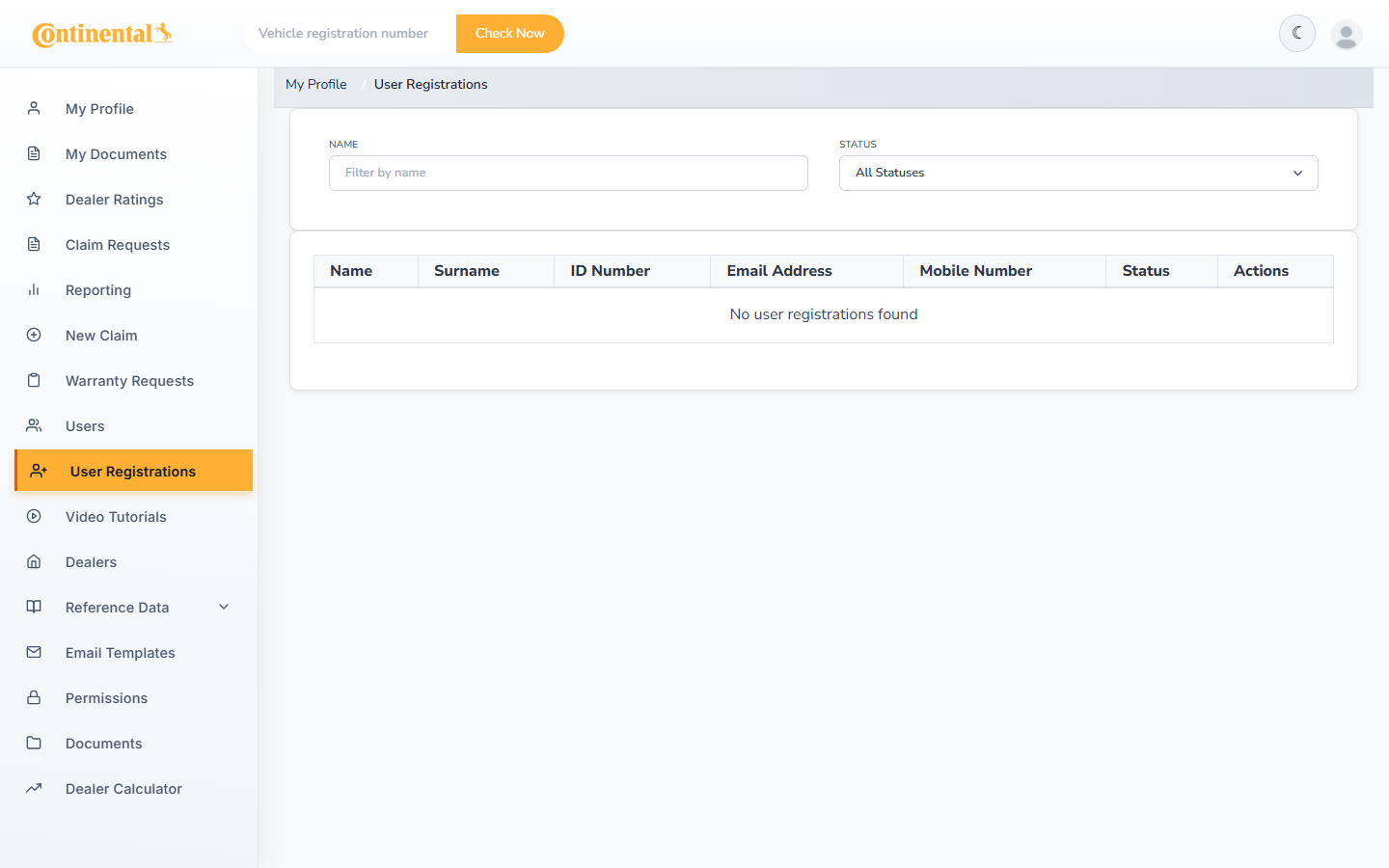
User Registrations
Open User Registrations to review pending self-registrations.
Approve or reject registrations after verifying details.
Approved users receive portal access according to their assigned role.
Permissions
Applies to: Administrator
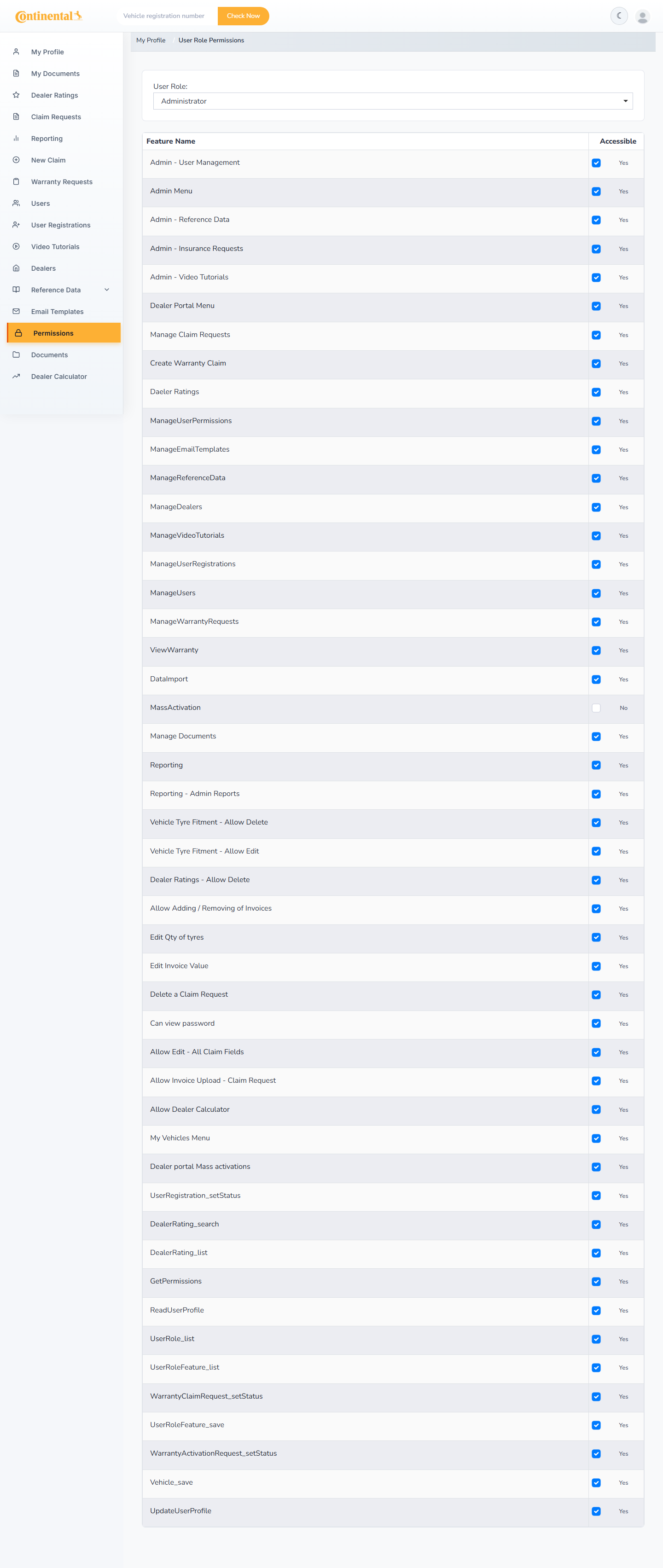
Permissions
Open Permissions to configure feature access per role.
Toggle feature flags to show or hide menu items and capabilities.
Save changes — users may need to sign out and back in to see updated menus.
Email templates
Applies to: Administrator
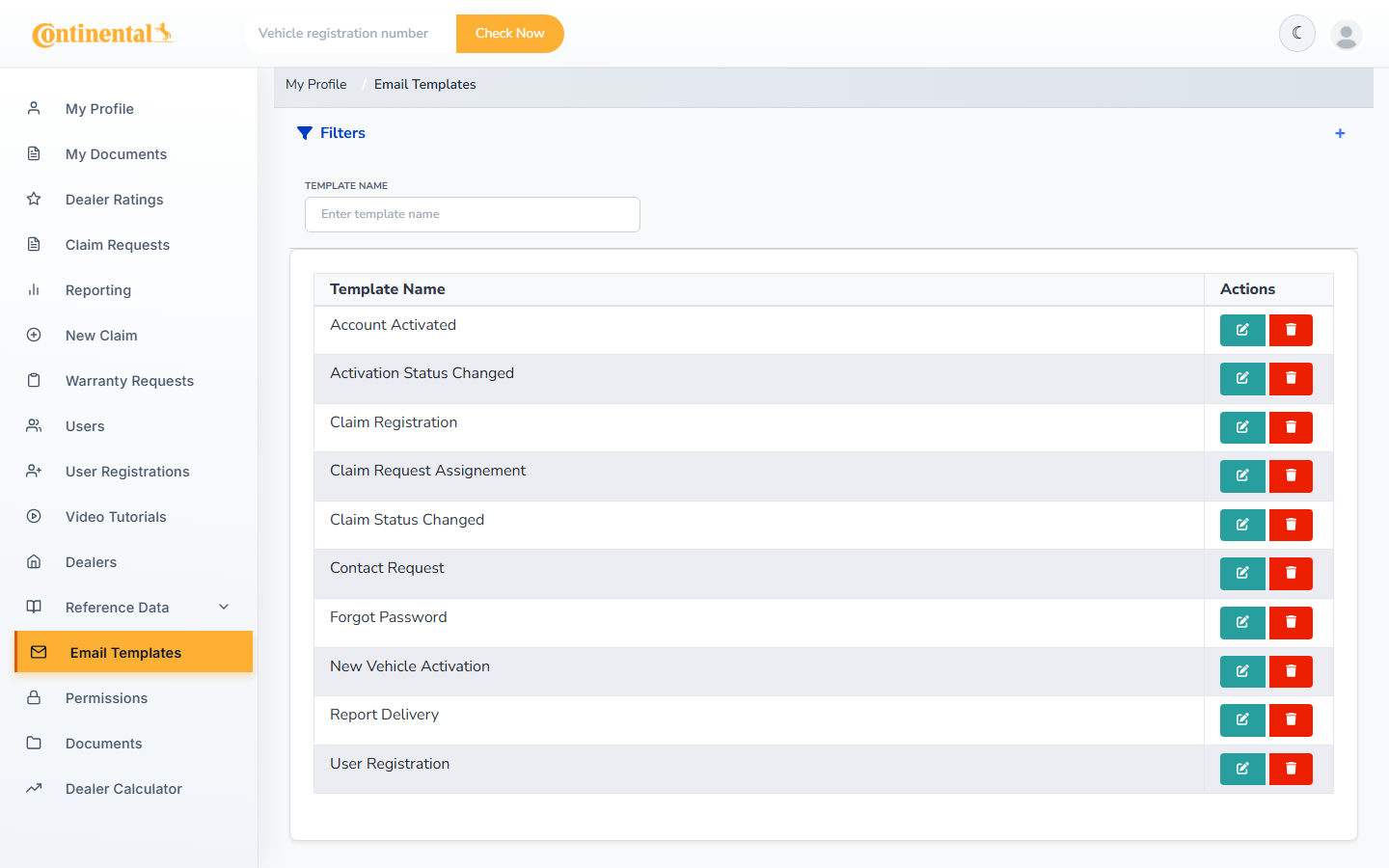
Email Templates
Open Email Templates from the sidebar.
Select a template to edit subject line and body content.
Use the rich text editor for formatting.
Save — system emails will use the updated template on next send.
Documents
Applies to: Administrator
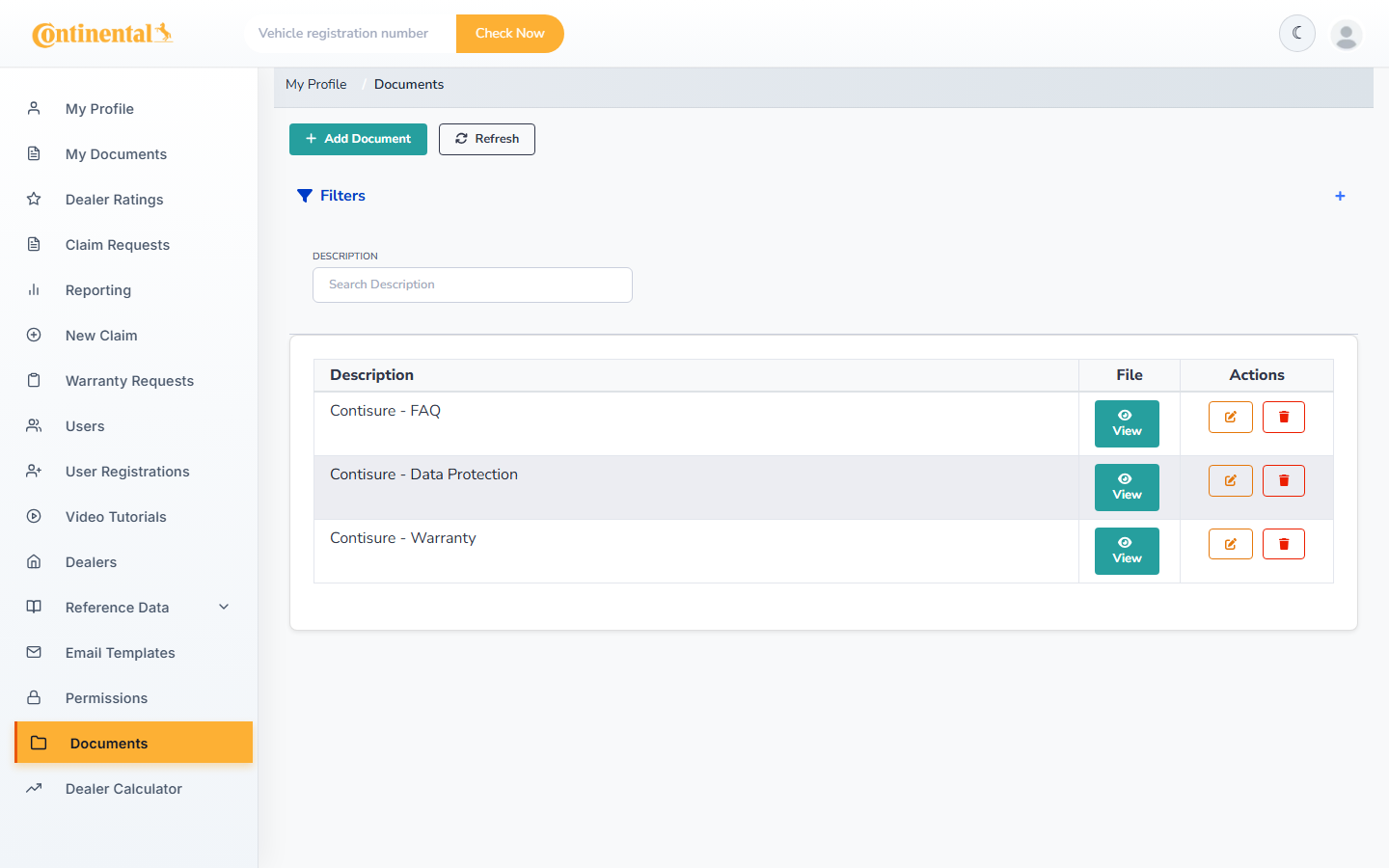
Documents
Open Documents to manage Terms & Conditions, policies, and supporting files.
Click Add Document to upload a new file (PDF, DOCX, PNG, or JPG).
Use Replace to publish a new version while retaining history.
Current versions are served on the public landing page and portal.
Users and roles
Applies to: Administrator
Users grid
Open Users to manage all portal accounts.
Create users for any role and assign region/dealer scope where applicable.
Open User Roles and Features under user management for advanced role configuration.
Import data
Applies to: Administrator
Migration and bulk import tools are available to Administrators when enabled. Contact your system owner before running import operations on production data.
Appendix
Claim status glossary
Applies to: All
Status
Description
New
Claim submitted and awaiting assignment
Assigned
Claim allocated to a handler
Approved
Claim approved for processing
Declined
Claim rejected — review reason in detail view
Awaiting documentation
Additional documents required from dealer or customer
FOC
Free of charge tyres authorised
In credit process
Credit being processed with Continental
Credit processed
Credit completed
Tyres Dispatched
Replacement tyres dispatched to dealer
Support contacts
Applies to: All
Use the Contact form on the public landing page for general enquiries.
Phone support details are shown on the landing page contact section.
For portal access issues, contact your dealership administrator or ContiSure programme administrator.
Document version
Applies to: All
This guide is generated from the ContiSure documentation source. Use Download PDF on the guide page for an offline copy, or Print from your browser.
Generated 2026-07-08. British English. Programme version as deployed.